

Before you begin
To use LinkedIn Signals, you need:- The Vision Pixel installed on your website
- ICPs and personas configured in your Knowledge Base, if you want ICP and persona matching to show up on cards
Where to find LinkedIn Signals
- Open your 1eyeᴬᴵ workspace
- Select Signals in the left-hand nav to expand it
- Select LinkedIn Signals
What you can see on a signal card
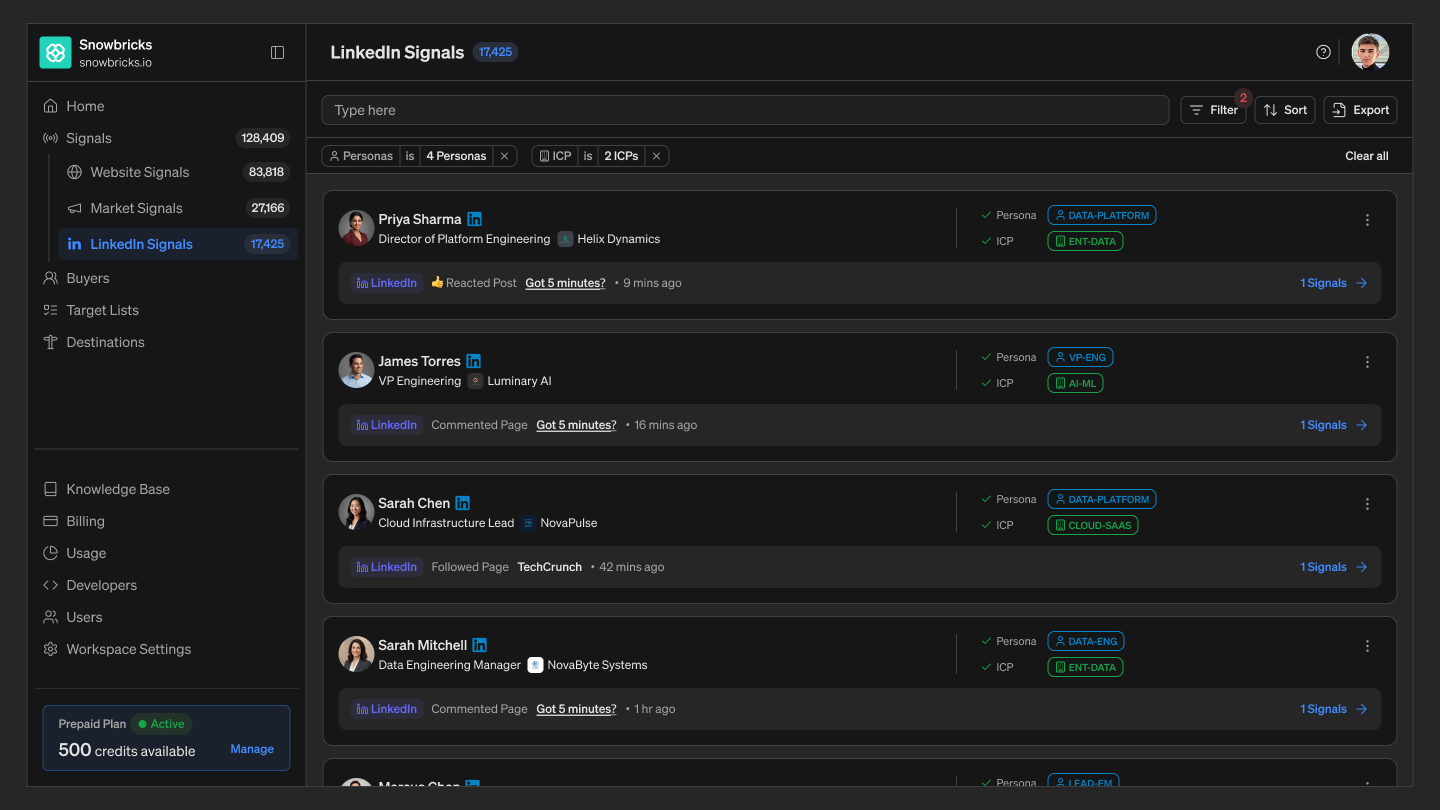
Each card in the LinkedIn Signals list shows:- Buyer name and LinkedIn icon
- Job title
- Company name and logo
- Persona match, with a checkmark and the matched persona (e.g. SOLUTION-ARCHITECT, LEAD-EM)
- ICP match, with a checkmark and the matched ICP tier (e.g. ENTERPRISE)
- The most recent LinkedIn action — what they did and how long ago
- A signal count link (e.g. “902 Signals →”) that opens the buyer’s full activity
- A quick-actions menu (⋮)
Open a buyer’s profile
Each entry in the activity feed shows: the time of the action, the type of LinkedIn action (Followed, Commented, Reacted, Loved, or Reposted), and the post or page they acted on. Select Open next to the buyer’s name for more detail, such as their LinkedIn profile.Filter LinkedIn Signals
Select Filter to open the filter builder. Unlike a fixed set of filter fields, this is a query builder: each condition is a Where [field] [operator] [value] row, and you can chain as many conditions together as you need with AND / OR.Fields you can filter by
Add a condition
- Select + Add condition.
- Choose AND or OR.
- Select a field, then an operator, then a value.
Applied filters
Each condition you add appears as a chip above the list, for example “Action is Commented [x]”. Select Filter to edit the full query.Search
Use the search bar to find a specific buyer, company, or keyword.Sort
Export
Use Export to download the buyers in the current view as a CSV. Apply filters first if you want a focused export.Best practices
- Build filters top-down, starting with Action and Date before narrowing further.
- Use AND for precision, OR for reach.
- Check the activity feed before acting on a signal.
- Filter before exporting.