

Before you begin
- Admin or Marketer access to your 1eye workspace.
- A Pipedrive account with permission to install the app and create or update People and Organizations.
- At least one Target List. Use a list with eligible buyers to verify your first push.
- Valid work emails and usable names for buyers, plus company names and website domains for organization matching.
Connect Pipedrive
Step 1: Create the destination workflow- Open Destinations in your 1eye workspace.
- Select Add Destination.
- Enter a name, such as Push to Pipedrive, select Pipedrive, and select Add.
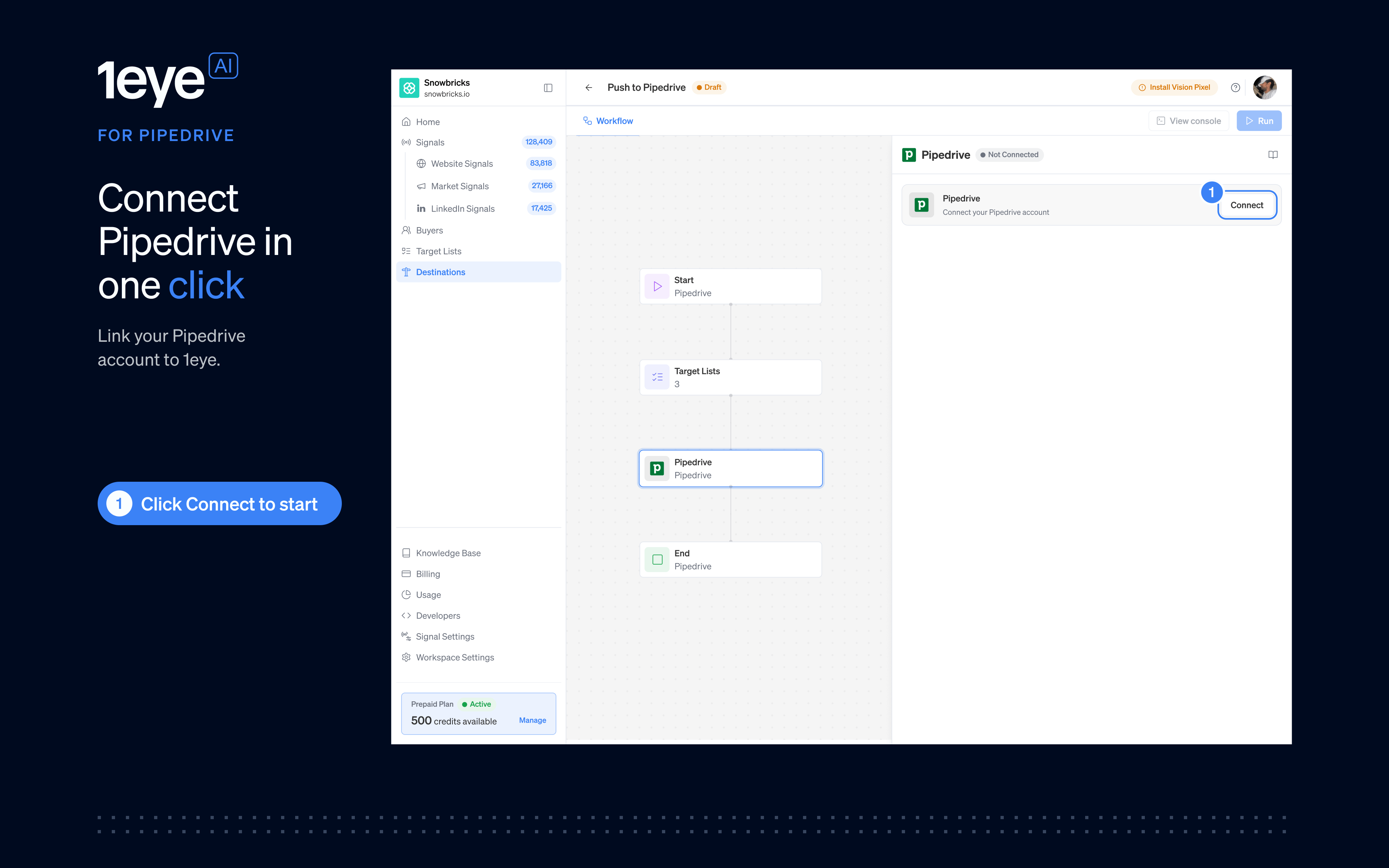
- In the 1eye confirmation, select Yes, continue.
- Sign in on Pipedrive’s authorization screen.
- Choose the correct Pipedrive company, review the permissions, and select Allow and Install.
- Return to 1eye and confirm that the destination shows Connected.
Target Lists node
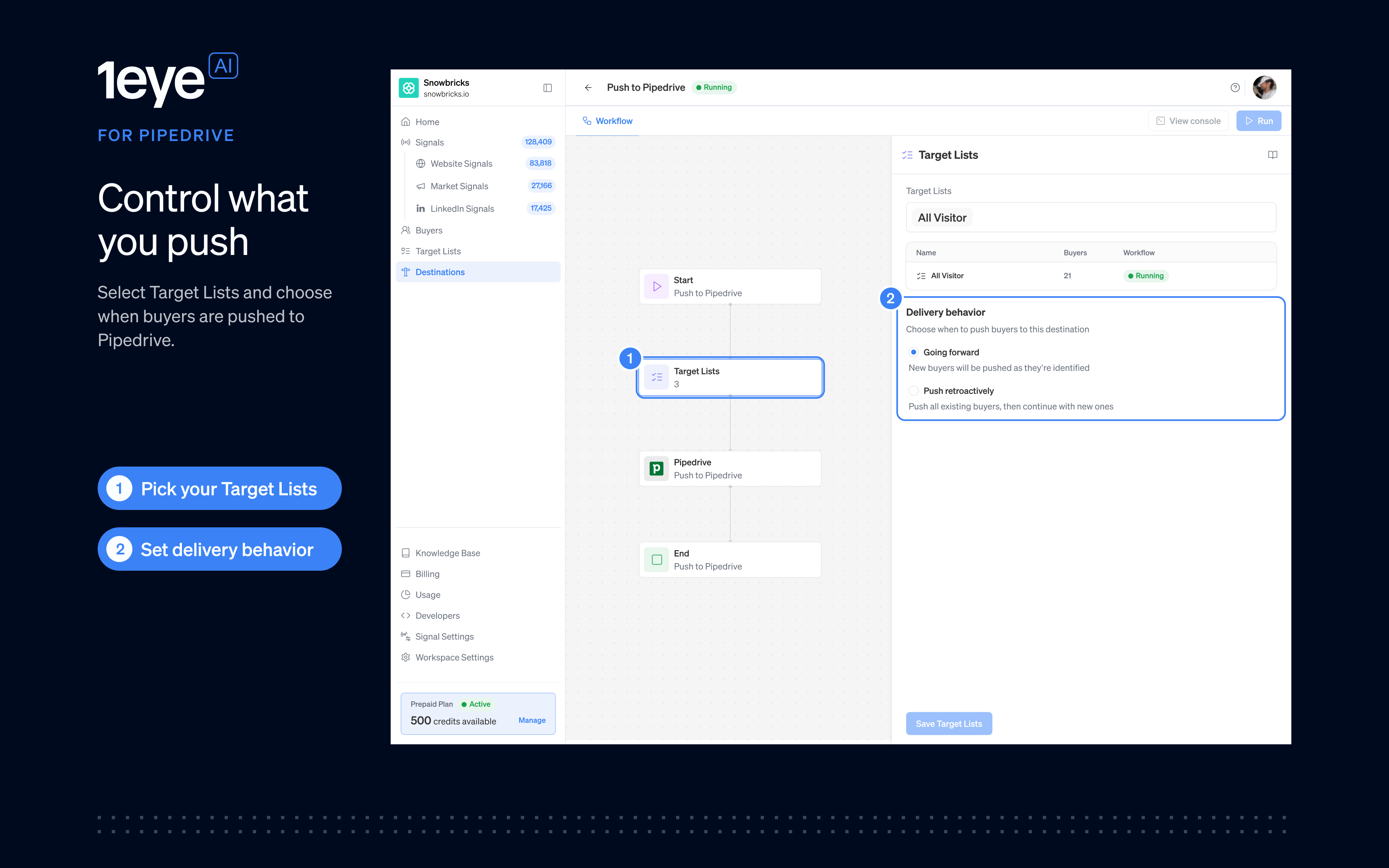
Select the Target Lists node, then:- Choose one or more 1eye target lists.
- Choose Delivery behavior:
- Select Save Target Lists.
Field mapping
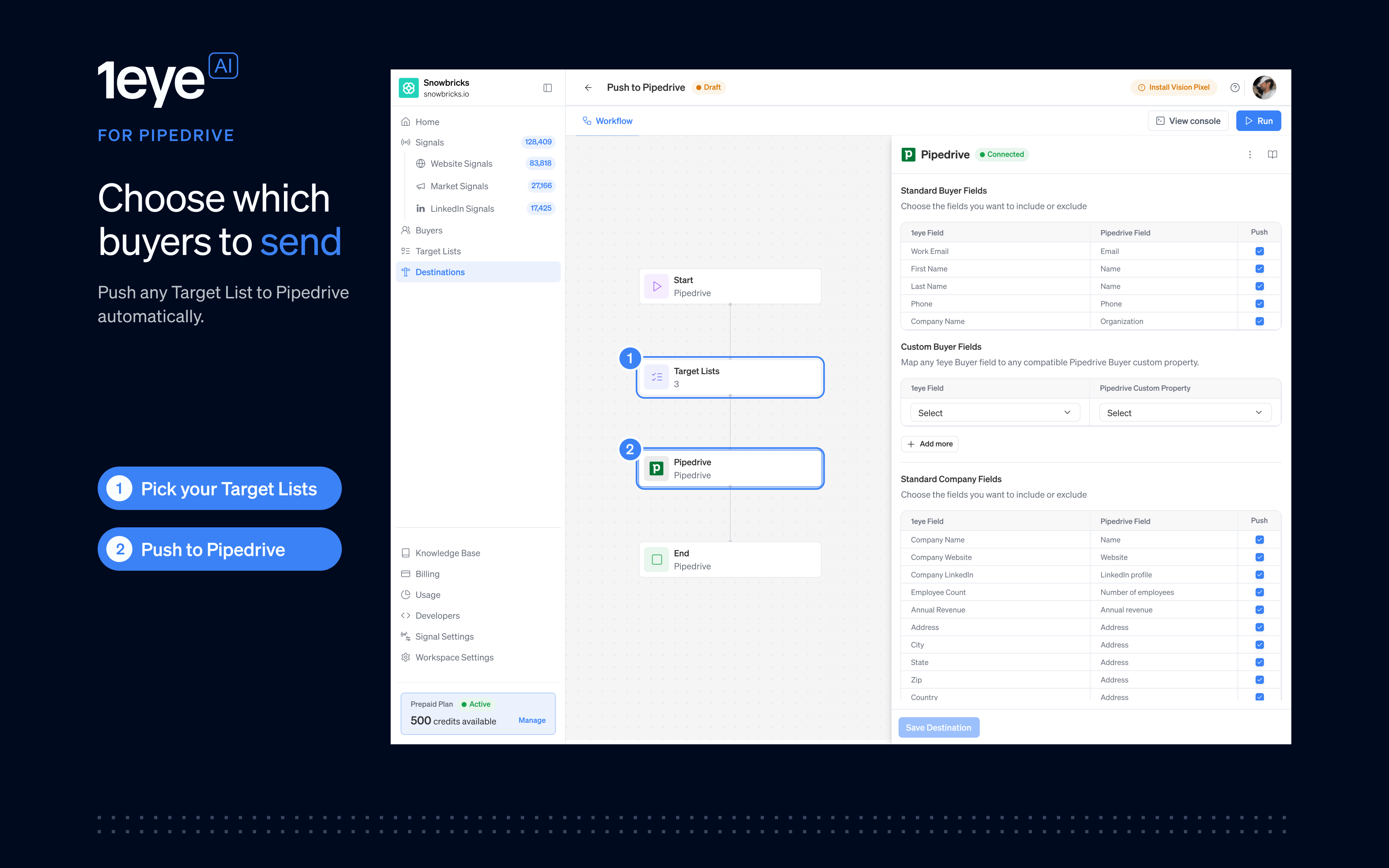
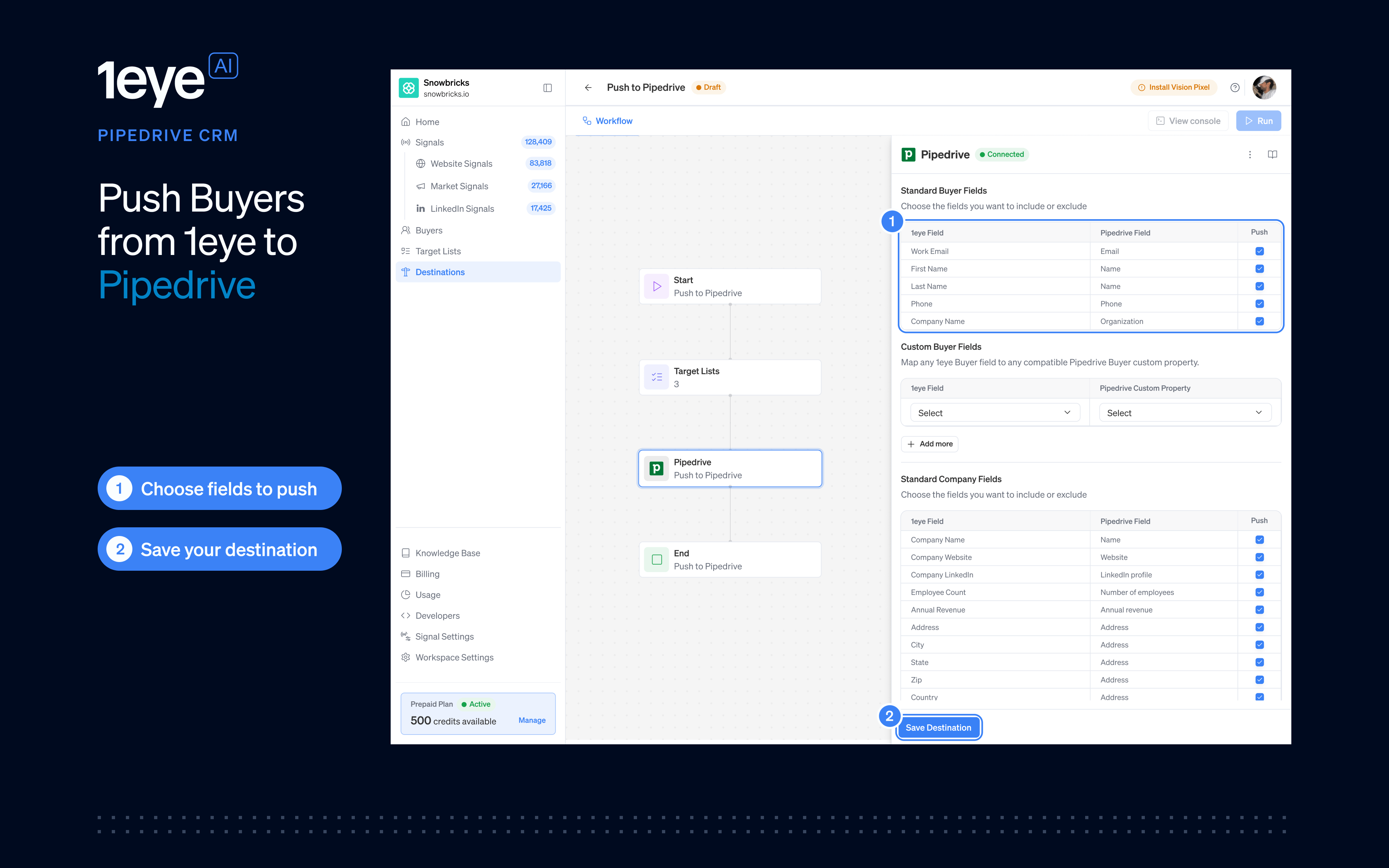
Mapping is organized into four sections: Standard Buyer Fields, Custom Buyer Fields, Standard Company Fields, and Custom Company Fields. Keep Push checked for each standard field you want to send. Uncheck optional fields you want to exclude. Standard Buyer Fields
First and last names combine into Pipedrive’s Name field. Company Name links the person to their organization.
A valid work email is used to match a buyer to an existing Pipedrive Person. Keep that email available in the buyer’s 1eye record even if you turn off updates to the Email field.
Custom Buyer Fields
- Select a 1eye Field.
- Select an existing, compatible Pipedrive Custom Property.
- Select + Add more for additional mappings.
Create custom fields in Pipedrive before mapping them in 1eye. 1eye does not create them automatically. Person fields and Organization fields are separate, so choose a field on the correct record type.
Company names and website domains help identify the correct Organization. Address components populate Pipedrive’s Address field. Send employee count and revenue only when the values are valid for the mapped field.
Custom Company Fields
Choose a 1eye company field and an existing, compatible Pipedrive organization custom property. Select + Add more to add another mapping.
For example, map Company Description to a text field you have created in Pipedrive.
Run the workflow
- Open the Start node.
- Choose Runs continuously, Runs until the selected date, or Runs once only.
- Select Save Workflow Settings.
- Confirm that your target lists and destination settings are saved, then select Run.
Monitor pushed records
Select View console in the workflow. Review All, Pushed, Pending, or Failed records.
Select a buyer to inspect the fields sent or attempted, the Pipedrive Person and Organization IDs, and any response or error.
Use the Pipedrive record links when available to verify the Person, linked Organization, and mapped values. If the Organization was created but the Person failed, inspect the Person error; the successful Organization is retained.
Disconnect Pipedrive
- Open the workflow and select the Pipedrive node.
- Open the ⋮ menu next to Connected.
- Select Disconnect.
Best practices
- Start with one small target list. Check a few Pushed records in Pipedrive before adding more.
- Review names and identifiers. Buyers need a usable name and valid email; companies need a name and website domain for reliable matching.
- Map only the fields you need. Use compatible custom fields for account-specific information.
- Check the Console after the first run. Resolve missing data, invalid mappings, or matching conflicts before expanding the workflow.
Troubleshooting
FAQ
Does 1eye see my Pipedrive password?
Does 1eye see my Pipedrive password?
No. You sign in and authorize access on Pipedrive’s own screen.
Can I change mappings after the workflow starts?
Can I change mappings after the workflow starts?
Yes. Open the Pipedrive node, update the mapping, and select Save Destination. New jobs use the latest saved mapping; changing it does not automatically rewrite every historical record.
Does this create Leads or Deals?
Does this create Leads or Deals?
No. This destination syncs buyers as People and companies as Organizations.
Does Pipedrive sync back to 1eye?
Does Pipedrive sync back to 1eye?
No. This destination sends data from 1eye to Pipedrive.
What happens when a buyer leaves a target list?
What happens when a buyer leaves a target list?
People and Organizations already pushed remain in Pipedrive. Removing a buyer from a target list does not delete CRM records.