

Creating a Target List
- From the Target Lists page, select Add Target List.
- Enter a Name and Description, then save. The list is created in Draft status.
- Open the list’s Workflow tab and configure the Buyers step’s Signals Filter and Buyers Filter (see below).
- Once the workflow is configured, a Workflow ready! Hit Run to build your list. banner appears. Select Run to activate the list and start capturing matching buyers.
Configuring the Buyers step
The Buyers step is where you define the rule that determines which buyers a Target List captures. It has two filters: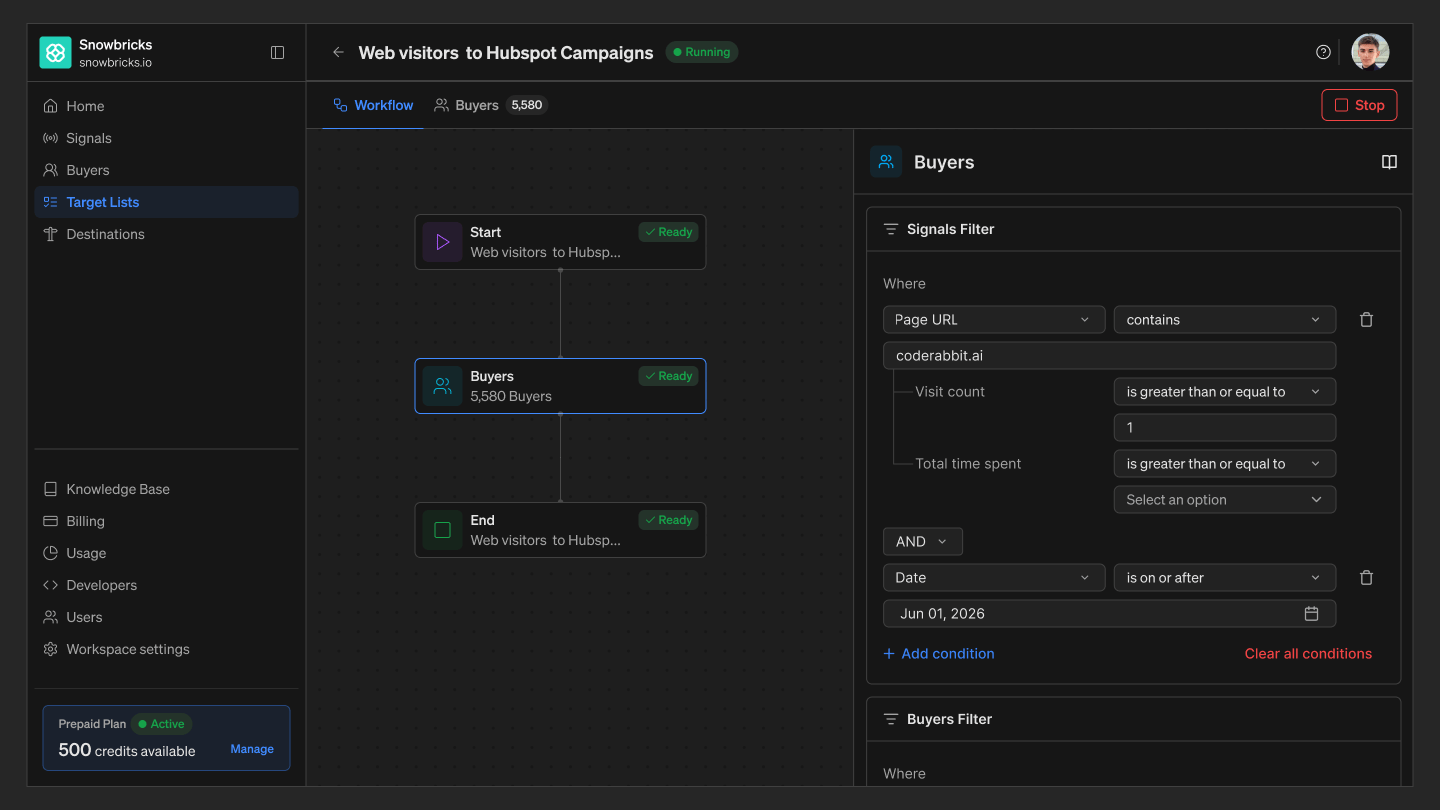
Signals Filter
Sets which website activity counts as a match, based on Page URL and how buyers engaged with it:- Page URL — choose contains, is, or starts with, then pick or type a URL. An autocomplete suggests your configured Target Pages (for example, a homepage tagged Exact Match, or a pricing page tagged Contains).
- Visit count — add a sub-condition with an operator (is greater than, is greater than or equal to, is less than or equal to, is between, equal to) and a numeric value.
- Total time spent — add a sub-condition with similar operators and a duration (minutes and seconds).
Buyers Filter
Narrows the match further by who the buyer is:- Choose ICP or Persona as the field.
- Choose an operator: is (a single ICP or persona) or is any of (opens a multi-select list of ICP or persona tags — select as many as apply).