

Before you begin
To set up a workspace, you need:- Google Workspace or Microsoft 365 / Teams account
- Your company name
- Your company domain
- Admin access for the person setting up the workspace
Step 1: Sign up and get 500 credits at $0
Go to the 1eyeᴬᴵ sign-up page and choose either Sign up with Google or Sign up with Microsoft, depending on your company’s provider.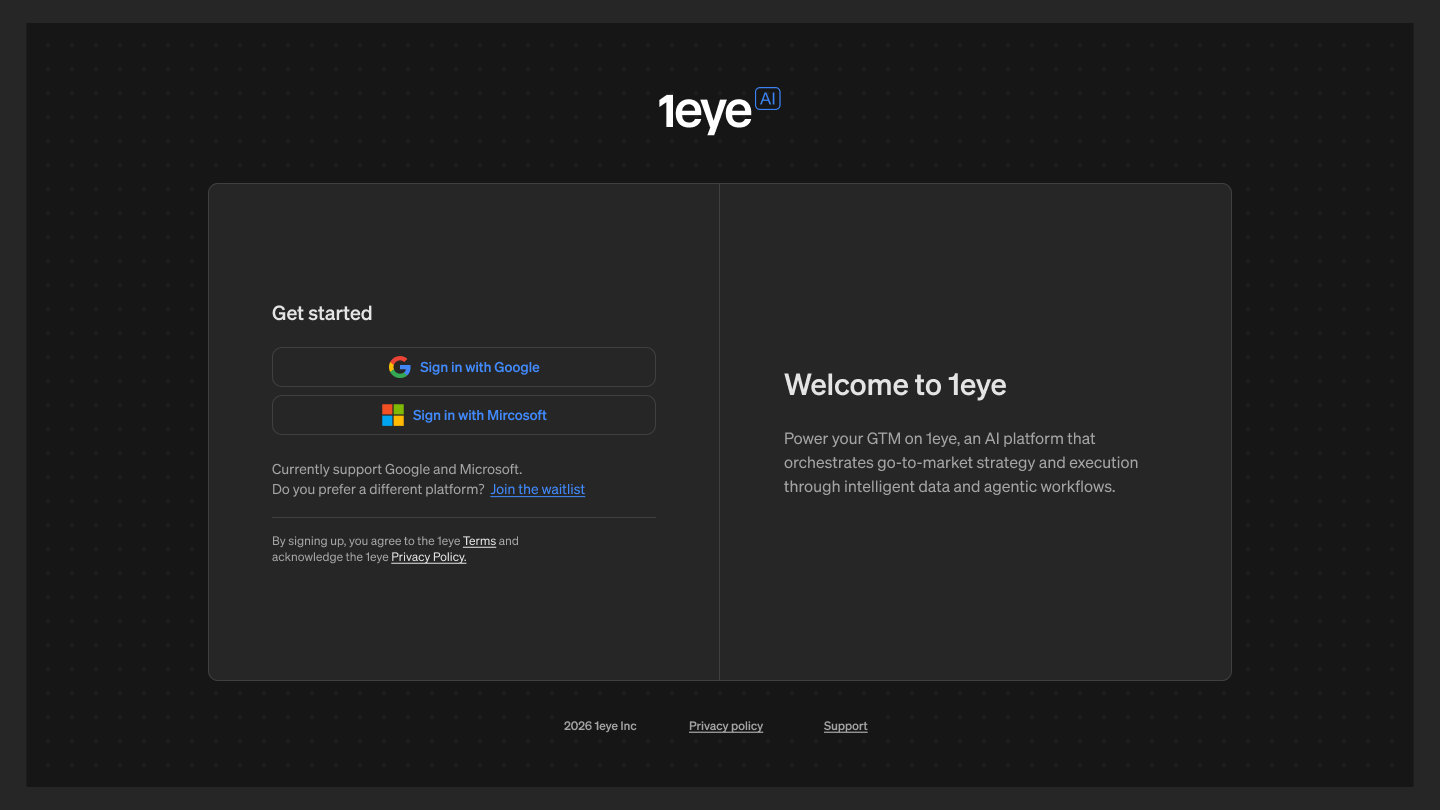
Step 2: Set up your admin account
Add the admin profile for the person who will manage the workspace.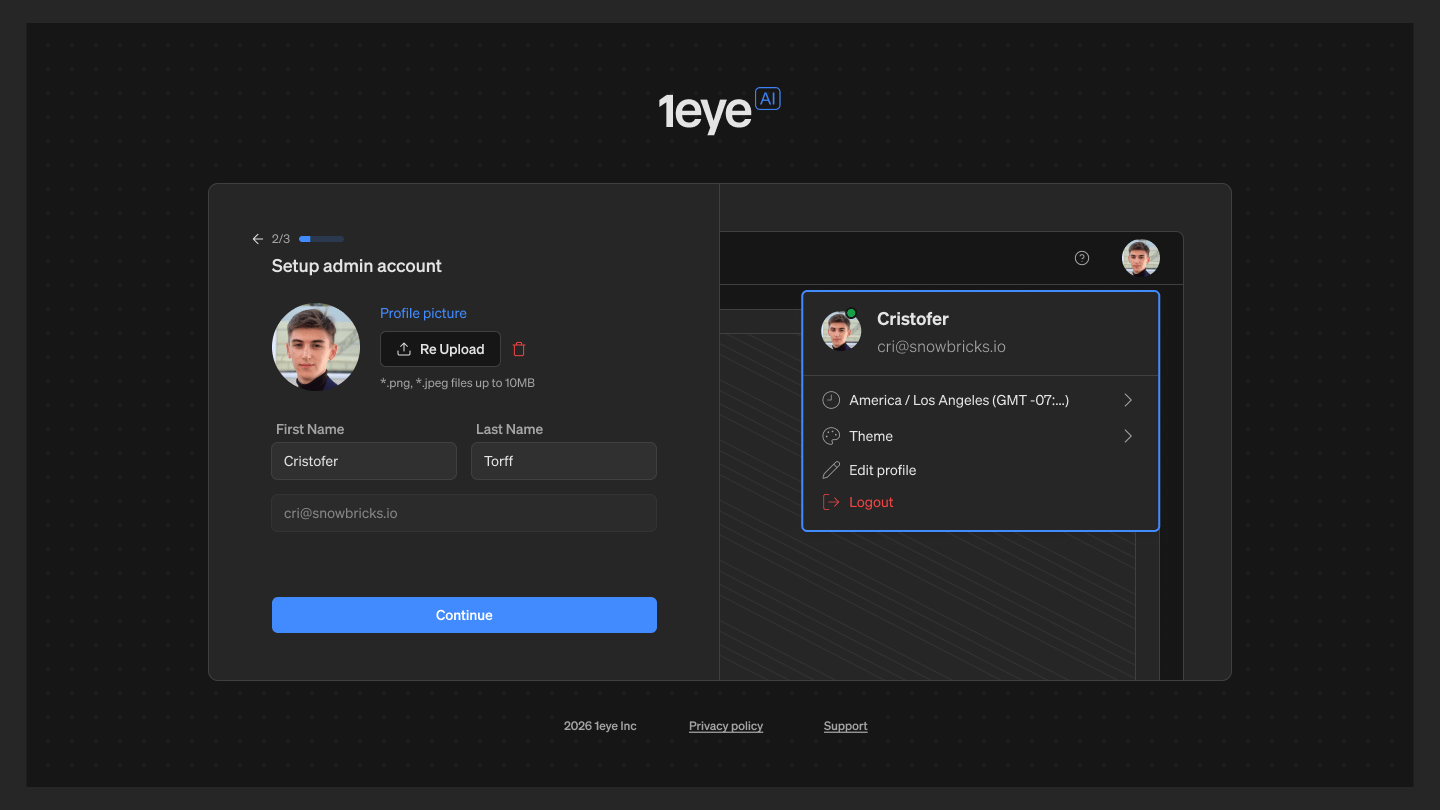
You can also upload a profile picture for the admin account.
The admin account is used to manage workspace settings, invite team members, review signals, and configure targeting.
Step 3: Set up your workspace
Add your company details so 1eyeᴬᴵ knows which business the workspace belongs to.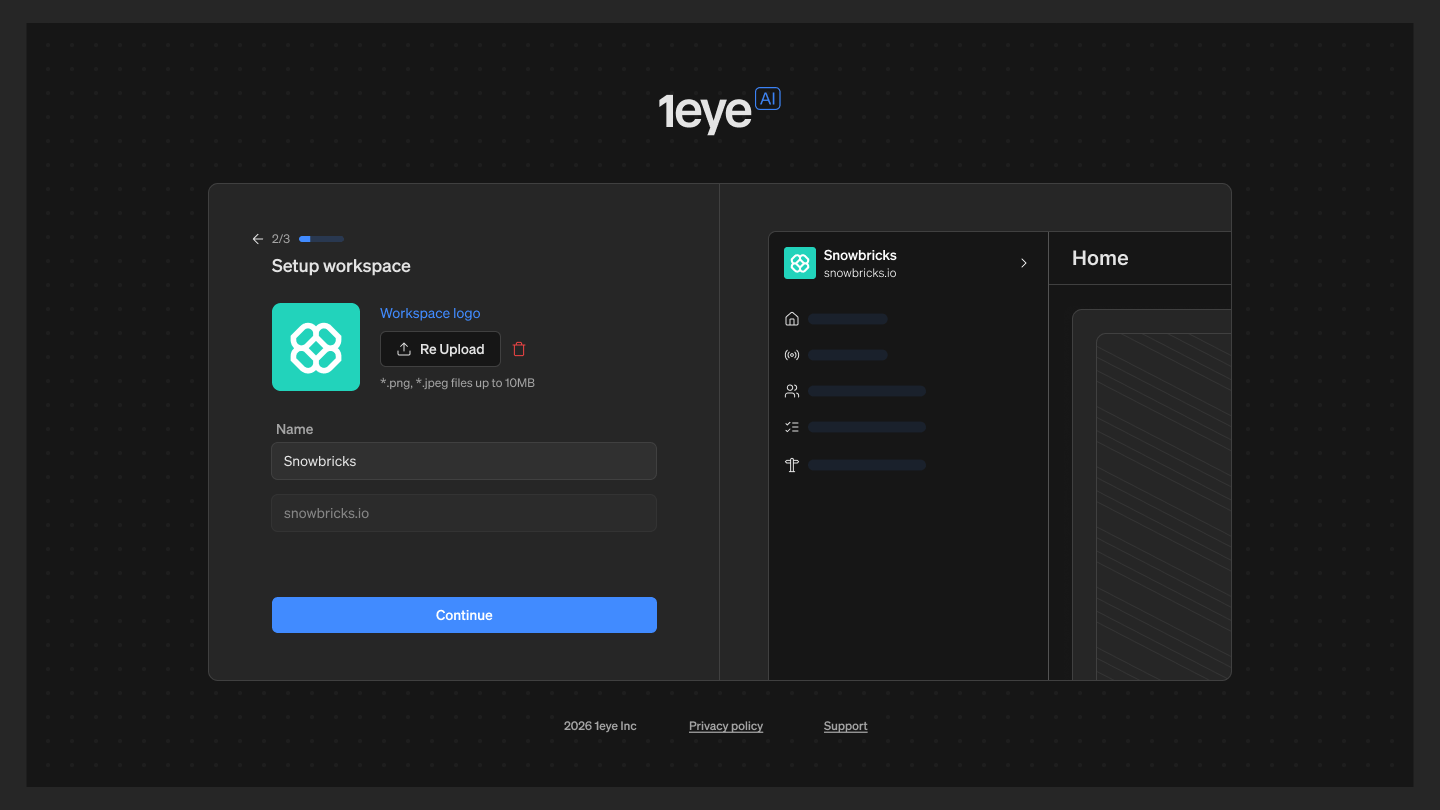
You can also upload your company logo. This helps your team recognize the workspace inside 1eyeᴬᴵ.
After you continue, 1eyeᴬᴵ creates the Snowbricks workspace and prepares your main workspace navigation.
Step 4: Confirm workspace creation
Once setup is complete, you’ll see a confirmation screen.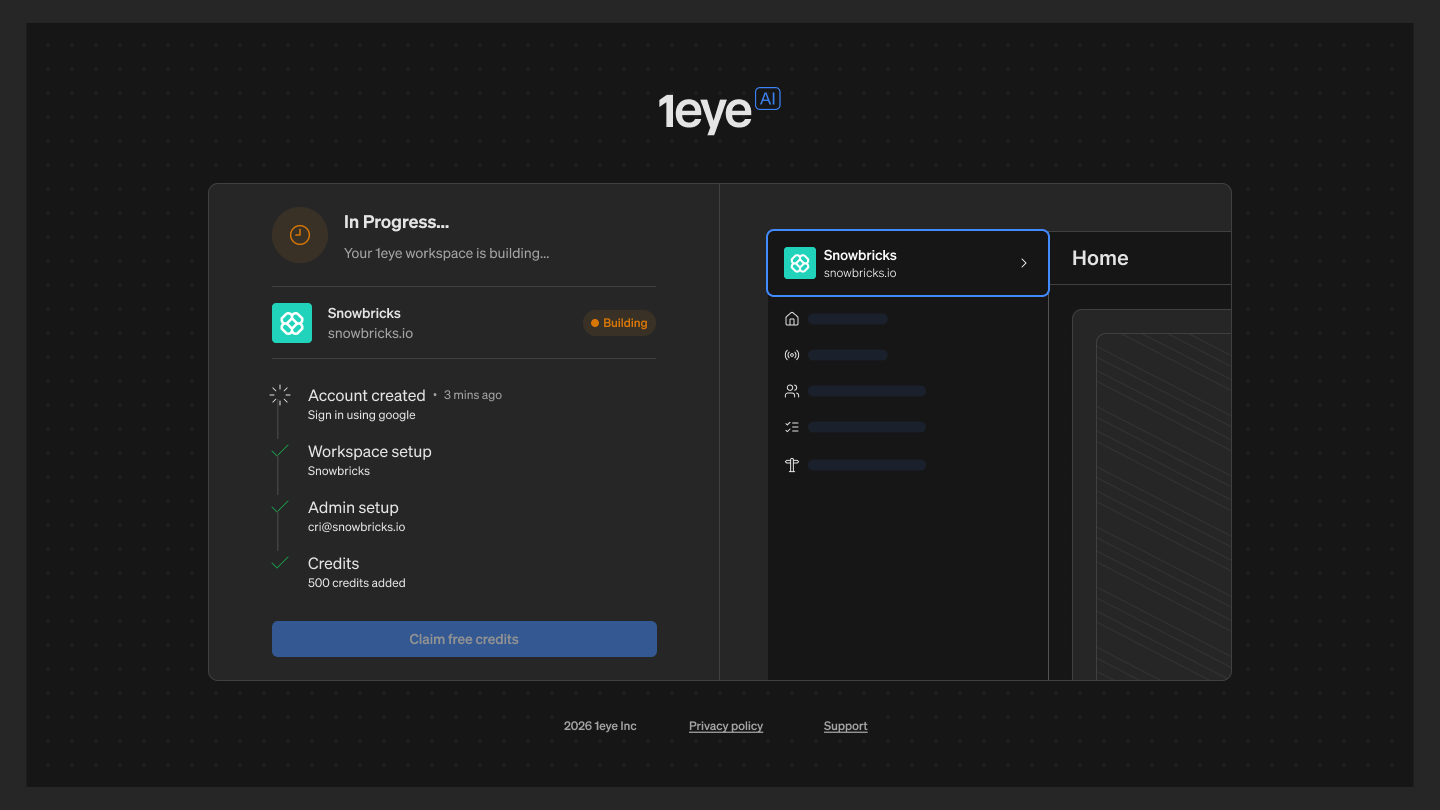
- Account created — Your admin account has been created using Google or Microsoft sign-in.
- Workspace setup — Your Snowbricks workspace has been created.
- Admin setup — Matt Bru has been added as the workspace admin.
Step 5: Review your workspace
After setup, you’ll land inside your 1eyeᴬᴵ workspace. From here, you can access the core areas of the platform.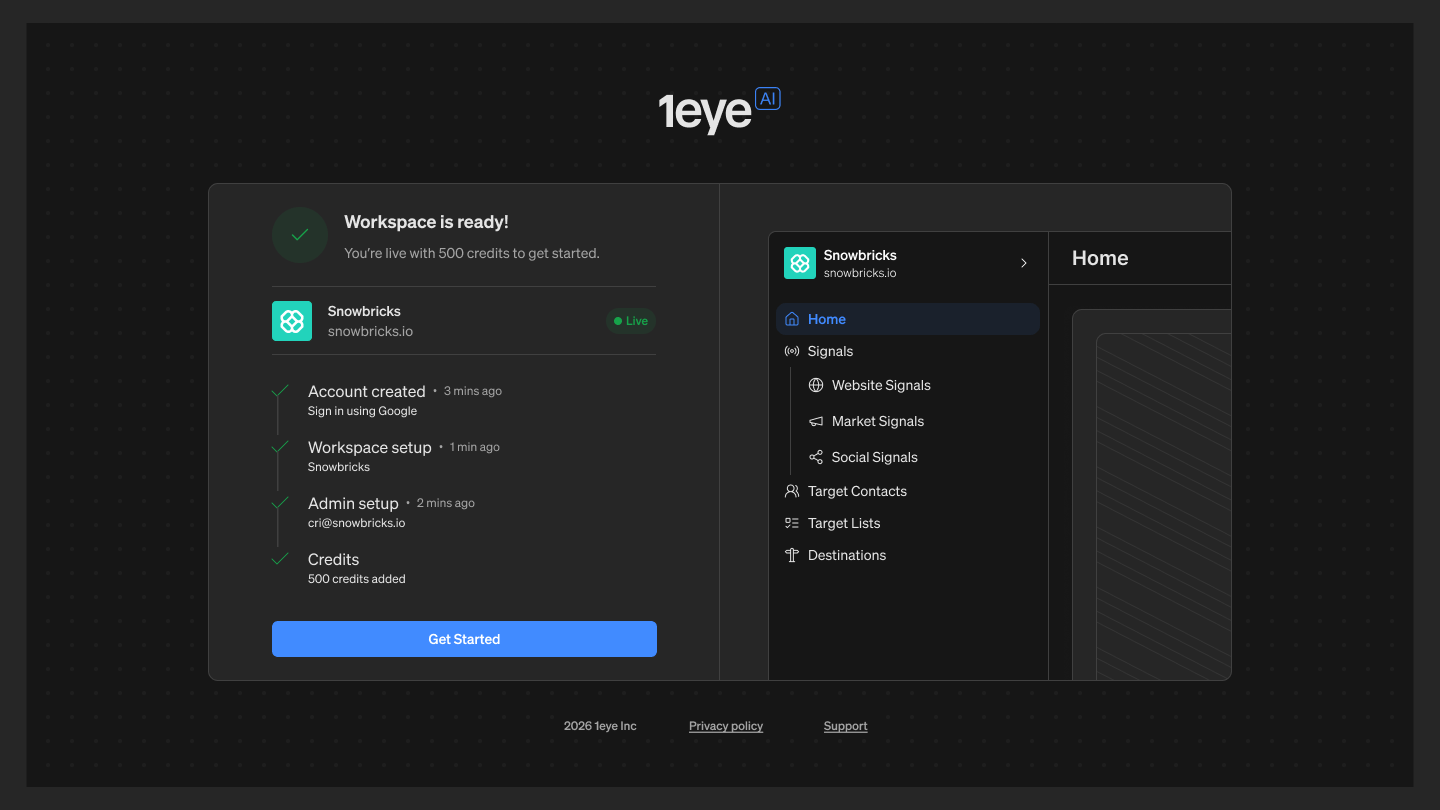
What happens after workspace setup
Once your workspace is ready, 1eyeᴬᴵ can start building the foundation for your GTM motion. The next steps are:- Install Website Pixel — Add the 1eye Website pixel to your website so website signals can start flowing.
- Review Knowledge Base — Review the ICPs, personas, Target Pages, and exclusions 1eyeᴬᴵ creates for your company.
- Act on Website Signals — See which buyers are active, what they’re doing, and where intent is coming from.
- Build Target Lists — Create a focused target list based on fit, signals, and persona match.
- Connect a Destination — Connect HubSpot or Salesforce, then push your target list so your team can engage with full context.
Best practices
- Use your real company domain — Your domain helps 1eyeᴬᴵ understand your company and connect signals to the right workspace.
- Use a real admin email — The admin should be someone responsible for GTM, growth, sales, marketing, or revenue operations.
- Upload your company logo — This makes the workspace easier to recognize for your team.
- Review generated context before pushing to a Destination — Before connecting a Destination, review your ICPs, personas, and exclusions so 1eyeᴬᴵ targets the right contacts.
- Install the Website pixel early — The sooner the pixel is installed, the sooner 1eyeᴬᴵ can start capturing website activity and target signals.