

Buyers tab
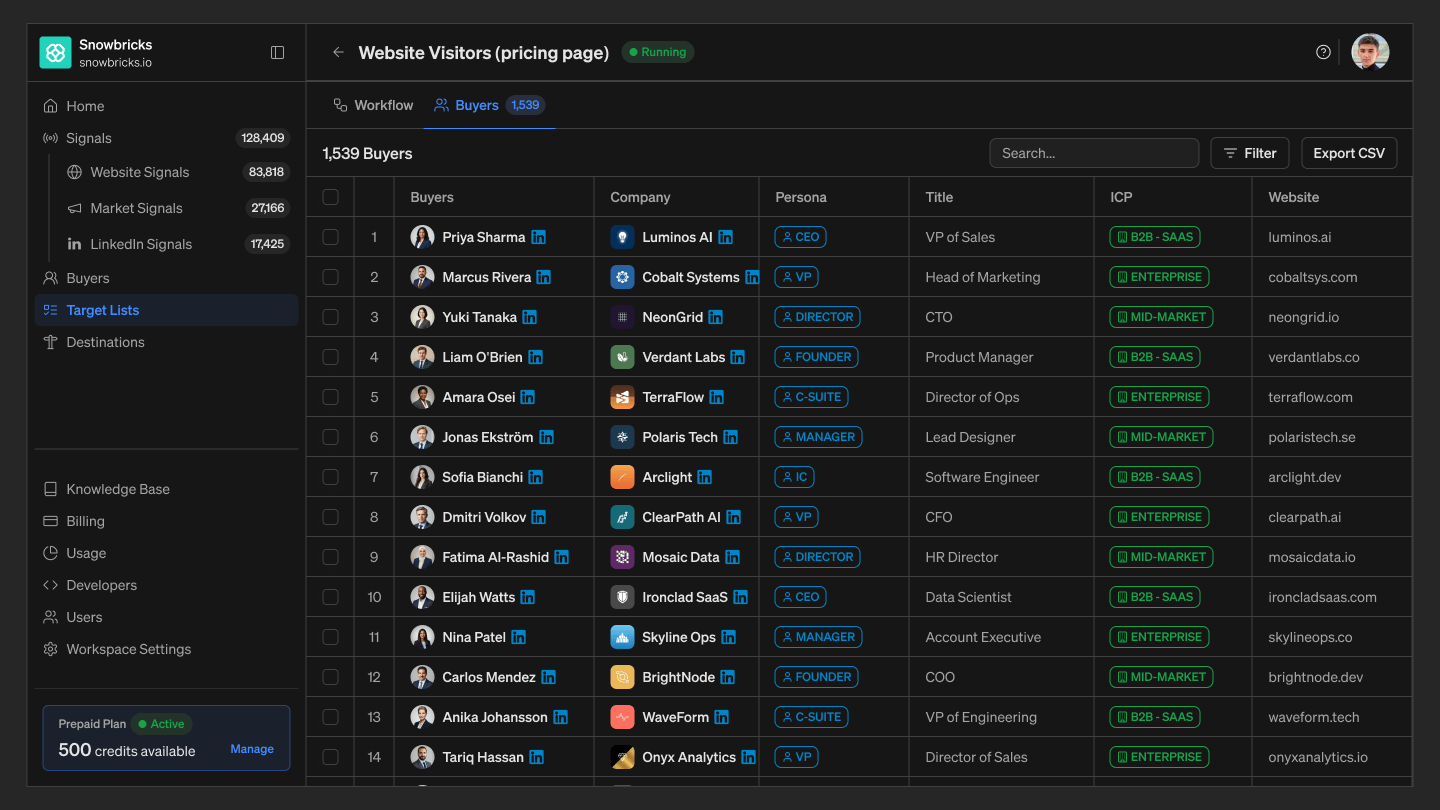
The Buyers tab shows everyone currently captured in the Target List. It typically includes:- Buyer — name and LinkedIn profile
- Company — logo, name, and LinkedIn profile
- Persona — the buyer’s matched persona (for example, Engineer / Developer, Lead / Eng Mgr, DevOps, Buyer)
- Title — the buyer’s job title
Buyer profile
Selecting a buyer — from a Target List’s Buyers tab, or from the workspace-level Target Buyer page — opens their profile in a side panel. The header shows the buyer’s name, role, company, matched Persona and ICP, and email. The panel has four tabs:- Person Info — first and last name, role, created and updated dates, address, and contact channels (phone, email, LinkedIn, Twitter, Facebook, GitHub).
- Company Info — company name, short name, website, description, industry, technologies, founded year, revenue, employee count, and created date.
- Signals — the buyer’s signal activity, grouped by day, showing the source page, the matched Target Page, and time spent.
- Target Lists — every Target List this buyer belongs to, showing each list’s buyer count, workflow status, and the date this buyer was added to it.
Naming Target Lists
A good Target List name should describe the signal or motion it captures. Good examples: Website Visitors (pricing page), Website Visitors (homepage). The name should help your team understand what the list is capturing without opening it.Best practices
- Keep each list focused on one signal or motion — for example, one Target Page and one ICP or persona combination per list, rather than combining several motions into one.
- Set the right run duration — use “Runs continuously” for evergreen motions, a selected end date for time-boxed campaigns, or “Runs once only” for a one-time pull.
- Review buyer quality regularly — check persona and ICP fit, and use Search, Filter, and Export CSV to review or share the list.
- Stop lists you no longer need — pause a list’s workflow once the motion is done, so stale audiences don’t keep pushing to Destinations.
Troubleshooting
- My list is stuck in Draft — Confirm both the Signals Filter and Buyers Filter on the Buyers step are configured and saved, and that the Start and End steps show Ready, then select Run.
- I don’t see buyers in my Target List — Confirm the list is Running, and that its Signals Filter and Buyers Filter conditions actually match live signal activity.
- My list stopped adding new buyers — Check the Workflow settings on the Start step: it may have reached a selected end date, or been set to run once.
- I can’t find a specific buyer — Use Search or Filter on the Buyers tab, or check the buyer’s own profile — the Target Lists tab shows every list they belong to.
FAQ
What is a Target List?
What is a Target List?
A live, rule-based audience of buyers. It runs as a simple workflow (Start → Buyers → End) that automatically captures matching buyers, and can be pushed to a Destination.
What status can a Target List have?
What status can a Target List have?
Draft, Running, Not Running, or Deleted. A new list starts as Draft until its Buyers step is configured and you select Run.
How do I control which buyers a Target List captures?
How do I control which buyers a Target List captures?
On the Buyers step, use the Signals Filter to define the website activity that counts as a match (Page URL, visit count, time spent), and the Buyers Filter to narrow it by ICP or Persona. Use Preview contacts to check the match before selecting Save Buyers.
Can a buyer belong to more than one Target List?
Can a buyer belong to more than one Target List?
Yes. A buyer’s profile shows every Target List they’re part of, under the Target Lists tab.
How long does a Target List run?
How long does a Target List run?
It depends on the Workflow settings on its Start step: continuously until stopped, until a selected date, or once only.
Can I stop a Target List?
Can I stop a Target List?
Yes. Select Stop at the top of the list to pause its workflow.
How do I push a Target List to a Destination?
How do I push a Target List to a Destination?
See Destinations — connect the Target List to a Destination workflow to push its buyers.